Downloading the App
1.Open the Camera app on your Smart Device.
2.Select the rear-facing camera. Hold your device so that the QR code appears in the viewfinder in the Camera App...
3.Tap the notification to open the link associated with the QR code.
|
|


Adding to the App
Once your NVR, DVR or IP Camera is set up on the network. Then you can use P2P to connect to your device.
1. Go to the Menu in the App and Select Device List

|
2. Click "+" then select "IPC/NVR/DVR"

|
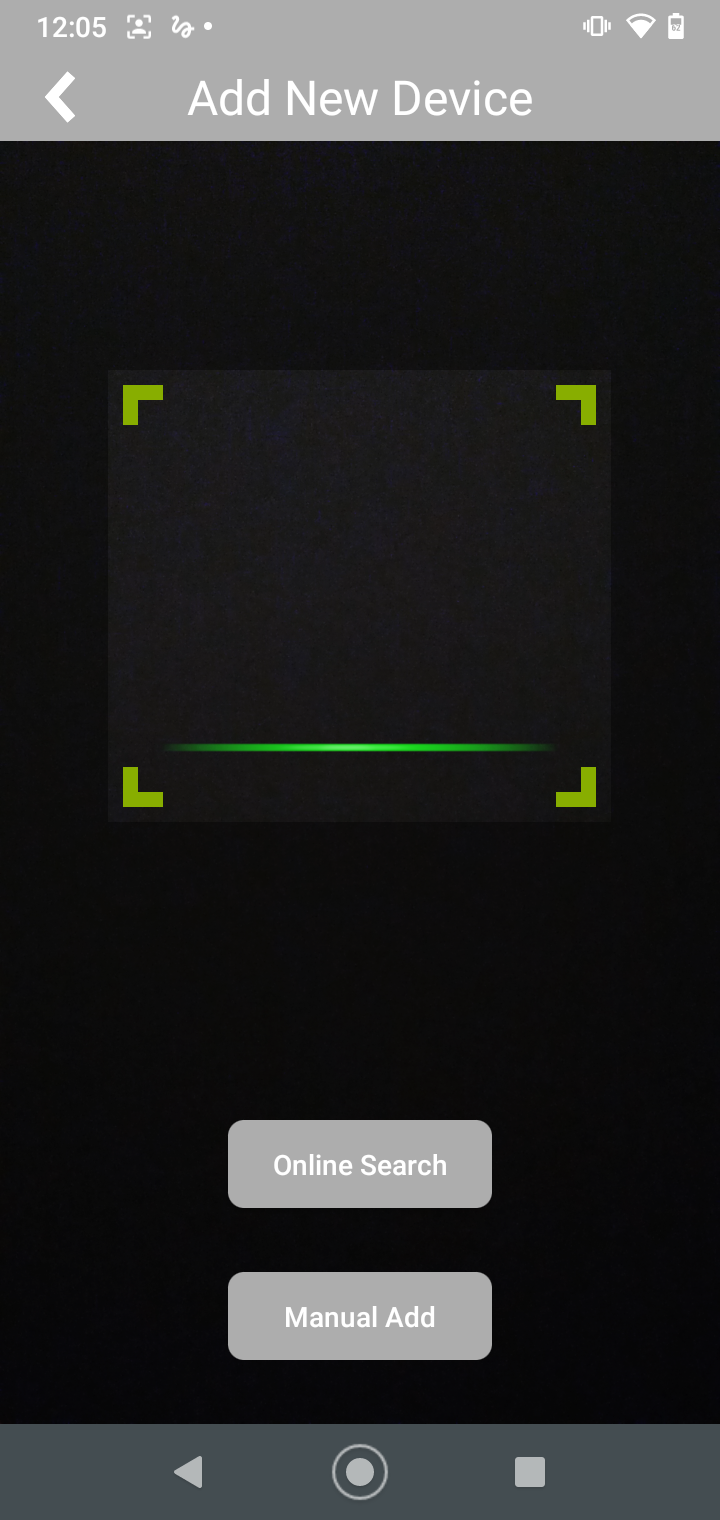
3. Scan the QR Code for the device, this is printed on the the DVR/ NVR/ IPC
|
4. Enter the credentials to login to the device and select "Save"

|
5. Go back to the Home Screen and Select the Device below to view the images
 |
|