This is a "how to guide" on updating the firmware on an IPMIT100.
Be aware that after applying a new firmware, so some of it’s settings will inevitably change.
The latest firmware for our products are available online .. http://ipmitter.com/firmware
The firmware is supplied in a .zip file when downloaded.
You should compare your ipmitters current firmware against those available online.
Disclaimer: Updating the firmware on your product carries a risk, if done incorrectly can lead to an unusable system. Please proceed at your own risk.
Do not attempt the upgrade if firmware is up to date.
Only use a wired connection to the IPmitter when upgrading.
1.Login to the interface on a browser on a Windows PC/ Laptop. Open a web browser, input the IP address of the device. (default = 192.168.1.123)
If you're unable to access the IPmitter using the default IP see the troubleshooting setting in the full manual;
www.systemq.com/PDF/manual/xIPMIT100.pdf
Note: The browser interface is for advanced users, incorrect use / setting could result in an inoperable unit.
Option A. Ask the on site IT department or network administrator for guidance on the IP address information to assign to the IPmitter.
Option B. Find a free IP address yourself, or use the default IP of the IPmitter.
2.Input the username and password, and click Login.
Default login details are:-
Default IP 192.168.1.123
Password ipmitter
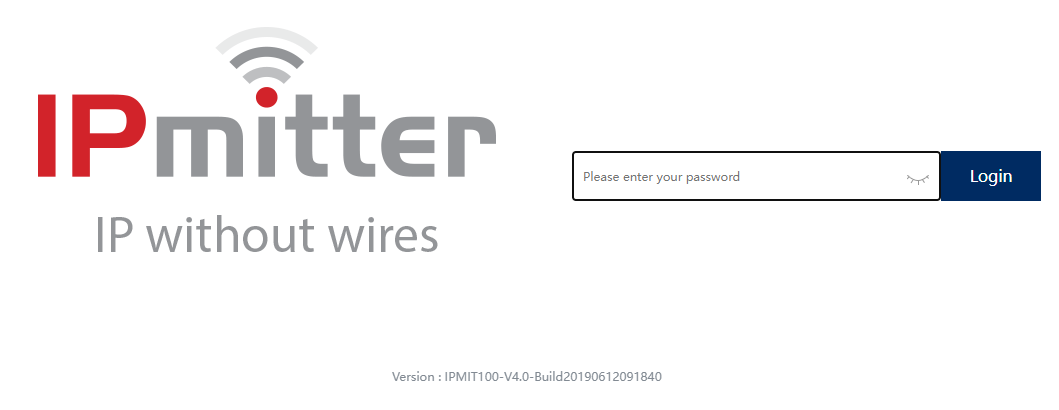
3.Go Device Manage > Upgrade.
Check the firmware online and compare to the firmware in the IPMIT100.
http://ipmitter.com/firmware
The image below shows an updated IPMIT100 firmware, if the version or build is lower than this then a firmware upgrade can be applied.

4.Download the relevant firmware upgrade file onto a Windows PC.
5.Right-click the file, then click Extract All.

6.Select Extract.

7. Once Extracted, then go back to the IPMIT100 browser interface and then select the file with Browse > then Upgrade.
Do not disconnect the power or network when upgrading.
8.Ensure you do CTRL + F5 after upgrading to clear the web cache.